Let me tell you something slightly embarrassing:
For years, I thought my little “treat myself” latte habit was my financial weakness. $6 here, $6 there, you know the drill. But when I finally sat down and looked at my budget, the real culprit wasn’t coffee at all.
It was my phone.
Not the upfront cost of buying it. Not the case. Not the screen protector.
The settings.
Yes, the toggles and switches buried inside menus that I didn’t even know existed — the ones that were quietly draining my data plan, sneaking in subscription renewals, and even charging me for services I didn’t realize were “on by default.”
And here’s the kicker: once I took a Saturday afternoon to poke around, I realized I was leaking way more money through my phone than through my oat milk cappuccinos.
So, I created a ritual I now call my “monthly settings audit.”
It takes me ten minutes, tops. And depending on the month, it saves me anywhere from $15 to $60. That’s not hype — that’s real. And while I can’t promise you’ll hit the same numbers, I can promise this: if you’ve never done a smartphone audit before, you’re almost guaranteed to find at least a couple of money leaks.
Let me show you how.
Why Our Phones Quietly Cost Us Money

Here’s the thing: our smartphones are designed to be helpful first, efficient second. That means manufacturers and app makers often leave features turned on by default that benefit them more than you.
- Carriers love when your phone slips onto roaming or burns through your data cap, because it justifies “helpful” add-on charges.
- App developers love when your apps refresh in the background, because it keeps their engagement numbers high — even if it eats your plan.
- Marketers love when push notifications keep you opening apps, because that increases your odds of impulse buys.
And honestly? We rarely notice until the bill arrives.
The good news: you don’t need to be a tech wizard to stop the leaks. Most of this stuff lives just a few taps away.
Step 1: Cancel the Ghost Subscriptions Hiding in Your Phone
Let’s start with the easiest, fastest win: forgotten subscriptions.
Think about the last time you signed up for something with a “free trial.” A meditation app. A cloud storage bump. A premium photo filter.
Did you actually cancel before the trial ended?
A survey in 2024 showed the average American spends around $25–$40 a month on subscriptions they don’t remember having. Canadians are right there too, with some reports even higher. That’s hundreds of dollars a year basically on autopilot.
Here’s where to look:
- On iPhone:
- Open Settings → Tap your name at the top → Subscriptions.
- You’ll see every active and expired subscription tied to your Apple ID.
- On Android:
- Open Google Play Store → Tap your profile photo → Payments & Subscriptions.
Be ruthless here. Ask yourself: “Have I used this in the last 60 days?” If not, cancel.
My advice, is to set a calendar reminder for the first of every month. Five minutes here = dozens of dollars saved.
Step 2: Shut Down the Sneaky Data Drains
Data is one of the biggest money traps, especially if you’re not on a fully unlimited plan. And even if you are, throttling or “soft caps” can make your experience worse once you go past your limit.
Here’s what to target:
1. Background App Refresh
- iPhone: Settings → General → Background App Refresh → choose “Off” or “Wi-Fi only.”
- Android: Settings → Network & internet → Data Saver → ON.
Apps like Spotify, Instagram, and news apps love refreshing even when you’re asleep. Turning this off means they only update when you actually open them.
Realistic savings:
- Limited plans: $10–$20/month.
- Unlimited plans: no direct bill savings, but you’ll get longer battery life.
2. Auto-Play Videos
Videos are data hogs — especially autoplay previews on TikTok, Instagram, and YouTube.
- In the apps: Look for “Data Saver” or “Auto-play” options and turn them off.
- In browsers: Safari → Settings → Advanced → Media; Chrome → Settings → Site Settings → Media.
Why it matters: Even 20–30 minutes of scrolling on auto-play can chew through 1 GB. In Canada or the U.S., that’s $10–$15 if you’re on a capped plan.
3. Cloud Syncing on Mobile Data
Your phone may be uploading every picture and video the second you take it — even when you’re not on Wi-Fi.
- iPhone: Settings → Photos → Cellular Data → toggle OFF.
- Android (Google Photos/Drive): Settings → Backup → choose “Wi-Fi only.”
If you’re like me and take videos daily, that’s multiple GBs a month saved.
4. Wi-Fi Assist (iPhone) / Adaptive Connectivity (Android)
This “helpful” feature switches you to cellular data when your Wi-Fi is weak — without asking. Sounds good in theory, but in practice? It’s a sneaky bill inflator.
- iPhone: Settings → Cellular → Wi-Fi Assist → OFF.
- Android: Settings → Network & Internet → Adaptive Connectivity → OFF.
I once lost $12 in overage because my Wi-Fi hiccupped during a Netflix binge. Never again.
Step 3: Protect Yourself from Roaming Surprises
This one hit me the hardest: I once got billed $80 for “international roaming” while sitting in my living room near the Canadian border. My phone had quietly connected to a foreign tower without warning.
Here’s how to stop that:
- iPhone: Settings → Cellular → Cellular Data Options → Data Roaming → OFF.
- Android: Settings → Network & Internet → Mobile Network → Roaming → OFF.
U.S. & Canada specific notes (2025):
- Some U.S. carriers (like T-Mobile) include limited roaming in Canada/Mexico. But not all. Check your plan before traveling.
- In Canada, border towns are notorious for “accidental U.S. roaming.” Bell, Rogers, and Telus customers should always double-check this setting.
EU note (2025):
Within the EU/EEA, you’re mostly safe thanks to “Roam Like at Home” rules. But the second you step outside (e.g., to the UK, Turkey, or Switzerland), you’re back in expensive territory.
Step 4: Tame the Notifications That Trigger Spending
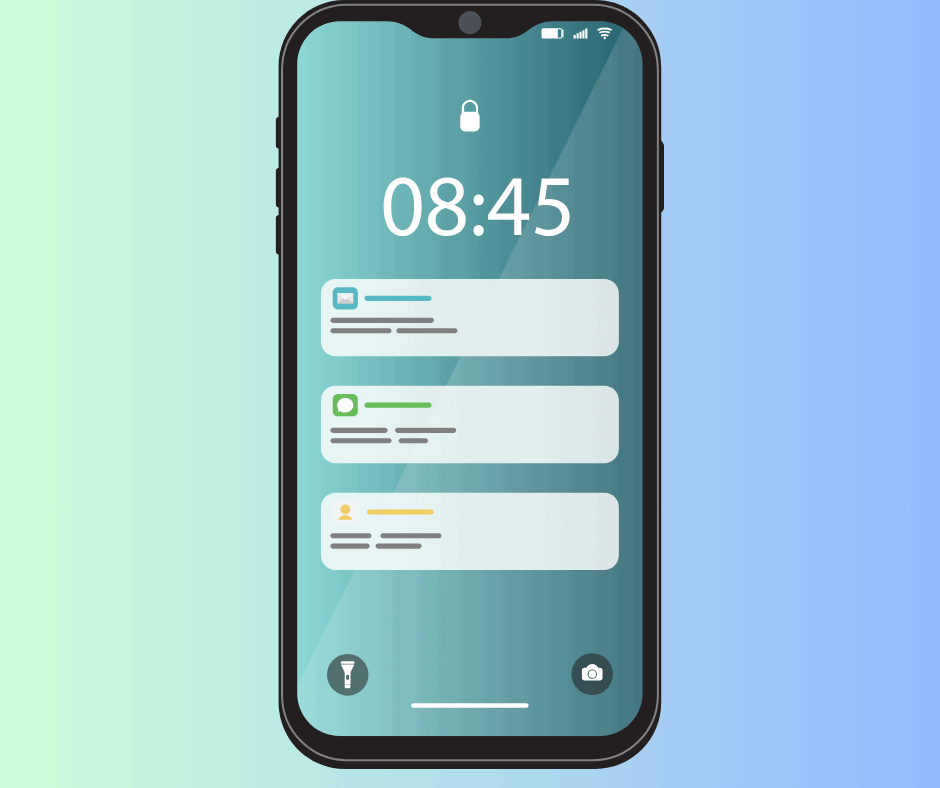
Not every leak shows up on your carrier bill. Some show up on your credit card.
Marketers know the fastest way to make you spend is through a notification:
- “FLASH SALE — 20% off ends in 3 hours.”
- “Your cart misses you.”
- “Limited edition drop happening now.”
I can’t tell you how many late-night impulse buys I made because of these.
The cure? Turn off marketing-heavy notifications.
- iPhone: Settings → Notifications → scroll apps → toggle OFF for Amazon, Uber Eats, Shein, etc.
- Android: Settings → Notifications → App notifications → toggle OFF per app.
The impact: It’s not an exaggeration to say this saved me hundreds over a year. Not from my phone bill, but from avoiding temptation.
Step 5: Use Built-In Features Instead of Paying for Apps
This one blew my mind. I was paying $5–$10/month for apps that my phone already had features for.
- Document scanning:
- iPhone: Notes app → new note → camera → Scan Documents.
- Android: Google Drive → “+” → Scan.
- Result: bye-bye $5/month scanner app.
- Budgeting:
- Apple Wallet + Google Wallet both show spending categories now.
- For basic tracking, that’s enough — no need for a $10/month budget app unless you want advanced reports.
- Sleep & health tracking:
- Apple Health and Google Fit now cover steps, sleep, heart rate (if paired with a wearable).
- I canceled a $7.99/month sleep tracker because it didn’t do anything Health couldn’t.
Reality check: Paid apps sometimes still offer nicer design or advanced features. But if you’re in “save money” mode, your phone likely already does 80% of what you need — for free.
Step 6: Smart Battery Tweaks (That Indirectly Save You Money)
Let’s be real: lowering your screen refresh rate isn’t going to magically shave $50 off your bill. But it can save battery life, which means fewer desperate airport charger purchases or fewer pricey portable battery packs.
- iPhone Pro models: Settings → Accessibility → Motion → Limit Frame Rate (caps at 60Hz).
- Android: Settings → Display → Motion Smoothness → set to Standard/60Hz.
Also, turning on Low Data Mode / Data Saver doubles as both a battery and data protector. Less background activity = fewer surprises.
Step 7: Watch Out for Carrier “Gotchas”
Even if you do everything right on your phone, carriers sometimes slip in “helpful” charges.
- Auto top-ups: Some plans automatically add data when you’re close to your limit. Unless you’ve opted out, you might be paying $10–$15 you didn’t mean to.
- Upgrade nudges: “You’ve used 90% of your data — tap to add more.” Check your billing cycle before agreeing. If your cycle resets tomorrow, don’t waste the cash.
- Optional insurance plans: Many people unknowingly pay $5–$15/month for device protection they didn’t realize they accepted during signup.
Call your carrier once a year and ask: “Am I paying for any optional features I don’t use?” You’d be shocked how often the answer is yes.
Step 8: The Quick Monthly Audit Checklist
If you only remember one thing from this article, make it this:
Ten minutes once a month = serious savings.
Here’s my personal checklist:
- Subscriptions: Review App Store / Google Play. Cancel what I don’t use.
- Data usage: Check Settings → Cellular/Data Usage. See which apps ate the most.
- Roaming & Wi-Fi Assist: Make sure both are OFF unless I need them.
- Background refresh: Ensure only essential apps get data in the background.
- Cloud backups: Confirm photo/video uploads are Wi-Fi only.
- Notifications: Nuke shopping/marketing apps.
- Built-ins vs paid apps: Ask “Am I paying for something my phone already does?”
That’s it. Seven steps, ten minutes, real money back in your pocket.
What You Can Actually Expect to Save

Here’s the realistic breakdown by country/plan type (2025 numbers):
- U.S.:
- Capped/prepaid plans: $20–$50/month saved is realistic.
- Unlimited: $10–$20 in indirect savings (subscriptions, impulse buys).
- Canada:
- Data is pricey. $30–$60/month savings is possible if you’re sloppy now.
- Border roaming makes roaming tips especially valuable.
- EU/UK:
- Within EU: less about roaming, more about subscriptions + data settings. Expect $10–$25/month.
- Outside EU travel: roaming hacks could save $50+ instantly.
- Australia/NZ:
- Similar to Canada — high data costs, roaming still expensive. Savings: $20–$40/month.
So no, not everyone will hit $600/year. But almost everyone can find something.
Final Thoughts: Your Phone Should Work for You, Not Against You
I’ll say this upfront: I love my phone. It helps me navigate, stay connected, work on the go, capture memories, and unwind. I don’t want to live without it.
But I also don’t want it secretly siphoning away money every month.
The truth is, most of these savings don’t come from radical lifestyle changes. You don’t need to ditch streaming services you love, or throw away your phone, or stop scrolling TikTok.
You just need to take ten minutes a month to audit your settings.
Because once you do, your phone goes from a money-leaking machine… to a tool that actually respects your wallet.
And honestly? That feels even better than a fancy latte.